
How do I remove a vehicle from my policy?
Please follow these steps to remove a vehicle from your policy:
Step 1:
The first thing you’ll need to do is log in to your Tint portal. Not sure how? Take a look at this article that walks you through the sign in process.
Step 2:
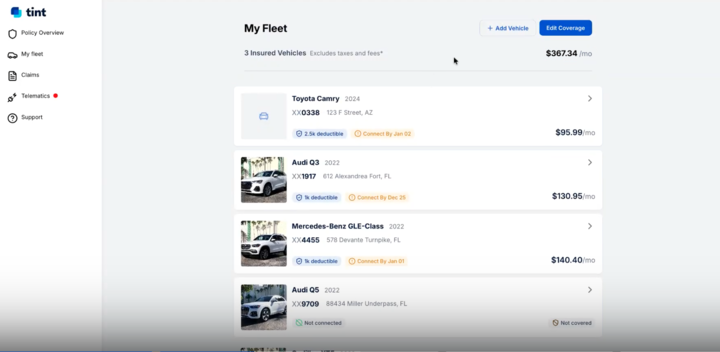
Once you’ve logged in to the Tint portal, the next step is to click “My Fleet” on the left side of your screen.
Step 3:
Click on the "Edit Coverage" button on the right side
Step 4:
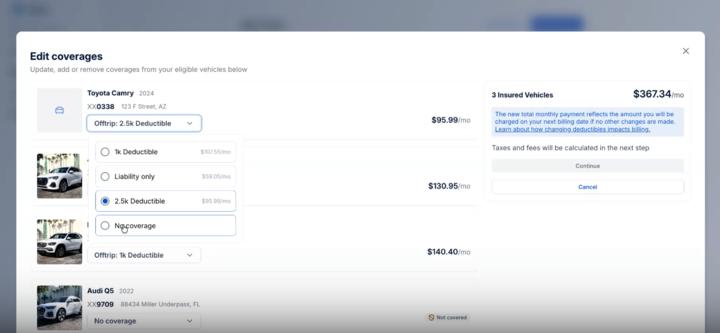
To remove a vehicle from your policy, open the drop-down menu for the desired vehicle and select "No Coverage."
Step 5:
Once all changes are selected, click "Continue" to confirm your changes. On the "Confirm coverage changes" page. Please take a look at your coverages that were changed, to make sure all is correct, and check the box stating "I have read and agree to the Off-trip Program Terms and Conditions to confirm the adjustment amount.
Credits for removed vehicles or coverage adjustments will be applied to the next month's billing cycle.
Please note: significant changes may take a moment to process. Please do not exit until you are redirected back to "My Fleet". Your changes should now reflect.